Overview
Uninstalling and reinstalling the backup agent can be a useful troubleshooting step for a number of unexpected behaviors, including:
- You are able to sign in to the Code42 console but not the desktop app
- Issues with the Code42 service, network communication, or a corrupted cache file
Backup add-on only
This article only applies to the backup agent. As a reminder, we are discontinuing support for the Incydr backup add-on, effective January 1, 2027. See our FAQ for more details.
Before you begin
You must uninstall the app before reinstalling; make sure you complete all the steps to uninstall the Code42 agent before reinstalling it.
Step 1: Uninstall the Code42 agent
Standard uninstall
A standard uninstall leaves a small amount of information on your device so the Code42 agent can remember your device when you reinstall. Most of the time, you should perform a standard uninstall for troubleshooting issues.
Windows
- Open the Control Panel and select Uninstall a Program.
- Select Code42 and choose Uninstall.
You may be prompted that another user on the device is signed in. If another user is signed in, it may prevent the Code42 agent from uninstalling completely. Coordinate with other users to ensure all users are signed out of their accounts before continuing.
Mac
Code42 agent version 11.0 and later, and all versions running on macOS Ventura and later
- Go to Applications > Utilities.
- Open Terminal.app.
The Terminal window opens.
- Enter the command corresponding to your installation type. If you plan to reinstall the Code42 agent, append
--preserve-data-upgrade to the end of the command to prevent the agent from resending files that are already backed up:
- Version 12.2 and later:
- Version 12.1 and earlier:
- Enter your password if prompted.
The password doesn't display as you enter it.
The Terminal uninstalls the Code42 agent.
Code42 agent version 10.3.1 and earlier
- Open the Finder.
- Press Command+Shift+G.
A dialog box appears: Go to the folder.
- Paste this text into the dialog box:
- Installed for everyone: /Library/Application Support/CrashPlan/Uninstall.app
- Installed per user: ~/Library/Application Support/CrashPlan/Uninstall.app
- Click Go.
If you see the error "The folder can't be found", download the Mac installer and double-click the .dmg file to mount it before continuing to the next step.
- Double-click Uninstall.
- Follow the prompts to complete the uninstall process.
Linux
- Download the Code42 agent.
- Uncompress the TGZ file in Downloads.
- Open Terminal and enter:
cd ~/Downloads/code42-install
- Press Enter.
- Then enter:
sudo ./uninstall.sh -i /usr/local/crashplan
If you plan to reinstall the Code42 agent, append -x to the end of the command to prevent the agent from resending files that are already backed up.
- Press Enter.
- At the prompt, type YES to uninstall and press Enter.
Complete uninstall
A complete uninstall removes the app's identity file so that there is no trace of the previous installation. Follow the steps below only if instructed to do so by a Technical Support Engineer.
Windows
- Open the Control Panel, and select Uninstall a Program.
- Select Code42 and choose Uninstall.
You may be prompted that another user on the device is signed in. If another user is signed in, it may prevent the Code42 agent from uninstalling completely. Coordinate with other users to ensure all users are signed out of their accounts before continuing. If the uninstallation fails, follow Microsoft's instructions to fix problems that block programs from being installed or removed.
- Remove both directories from your device if they exist:
- C:\ProgramData\CrashPlan
-
C:\Users\<username>\AppData\<Local or Roaming>\CrashPlan
- Depending on your network environment, user profiles can be either Local or Roaming.
Mac
Linux
-
Download Code42 agent.
- Uncompress the TGZ file in Downloads.
- Open Terminal and enter:
cd ~/Downloads/code42-install
- Press Enter.
- Then enter:
sudo ./uninstall.sh -i /usr/local/crashplan
- Press Enter.
- At the prompt, type YES to uninstall and press Enter.
- Remove the following directory from your system: /var/lib/crashplan
Step 2: Install the Code42 agent
- Download the latest version of the Code42 agent. See your administrator for guidelines on downloading the Code42 agent.
- Once the download completes, run the installer:
- Follow the prompts to complete the installation.
- Sign in to your existing account.
- If you performed a complete uninstall, continue to Step 3: Reconnect to your backup after a complete uninstall.
For additional installation information, see Install the Code42 agent.
File verification scan
After you sign in, the Code42 agent begins a file verification scan that inspects your file selection for any new, changed, or deleted files. Your backup continues from its previous state.
Step 3: Reconnect to your backup if you did a complete uninstall
After performing a complete uninstall, you must follow the steps to replace your device in order to reconnect it to your existing backup.
Select Replace Existing when prompted. This will start the replace device process (previously called "adoption") to retain your existing settings and backup progress.
- Choose the device with the archive/settings you want to use.
- Click Continue. You can identify which device to replace by:
-
Device name: By default, the device name matches the user name on your device.
-
Date Created On: Date the Code42 agent was initially installed on that device.
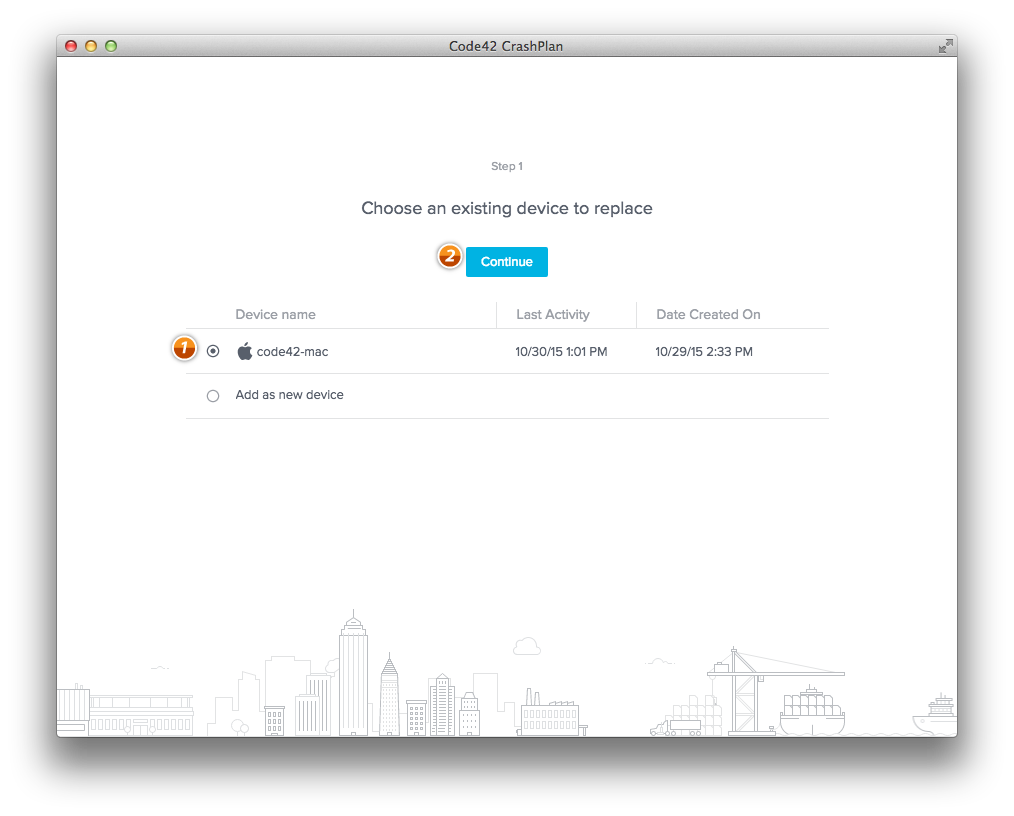
- Because you are not switching computers, select Skip File Transfer as your files are still in place.
Skip file transfer message
This message talks about files being marked as deleted. We are just letting you know anything not where it used to be will be marked as deleted in the archive (we are not deleting any files from your computer).
However, if this is the same computer, all of the data should be where it is expected to be. Even if it's marked as deleted, by default the Code42 agent does not remove deleted files from your archive.
- Select Skip to confirm skipping file transfer.
- Select Continue to transfer your original settings.
The Code42 agent resumes normal operation automatically after completing a file verification scan.
Related topics
Comments
Please sign in to leave a comment.